SEO Audit Protocol: Browser DevTools Guide
Learn SEO audits using browser developer tools only. No expensive software needed. See exactly how Google views your website.

Dilshad
Last updated: 6 May 2026
15 min read
TLDRQuick Summary
- •Manual SEO auditing using Chrome DevTools reveals what automated tools miss
- •Spoof User-Agent to see your site as Googlebot sees it
- •Check HTTP headers for hidden directives like X-Robots-Tag
- •Verify canonical tags in both source code and rendered DOM
- •Use search operators for off-page analysis without expensive tools
Automated SEO tools have a blind spot: they scan raw data but miss how websites actually work in the browser. A crawler might flag a "missing canonical tag" in the HTML while JavaScript injects the correct one, or report a page as indexable while an X-Robots-Tag header blocks it. Forensic SEO uses browser developer tools, source code inspection, and search operators instead. Googlebot uses a headless Chromium browser to request, parse, execute, and index content—it doesn't use third-party SEO tools. Chrome DevTools lets you see the website exactly as Google sees it. This guide covers Technical, On-Page, and Off-Page SEO audits using only manual verification methods.
Setting Up Your Browser for Auditing
Before starting, configure your browser as a diagnostic tool rather than a content viewer. Standard browser settings hide errors and cache content for speed, which obscures the real interaction between client and server.
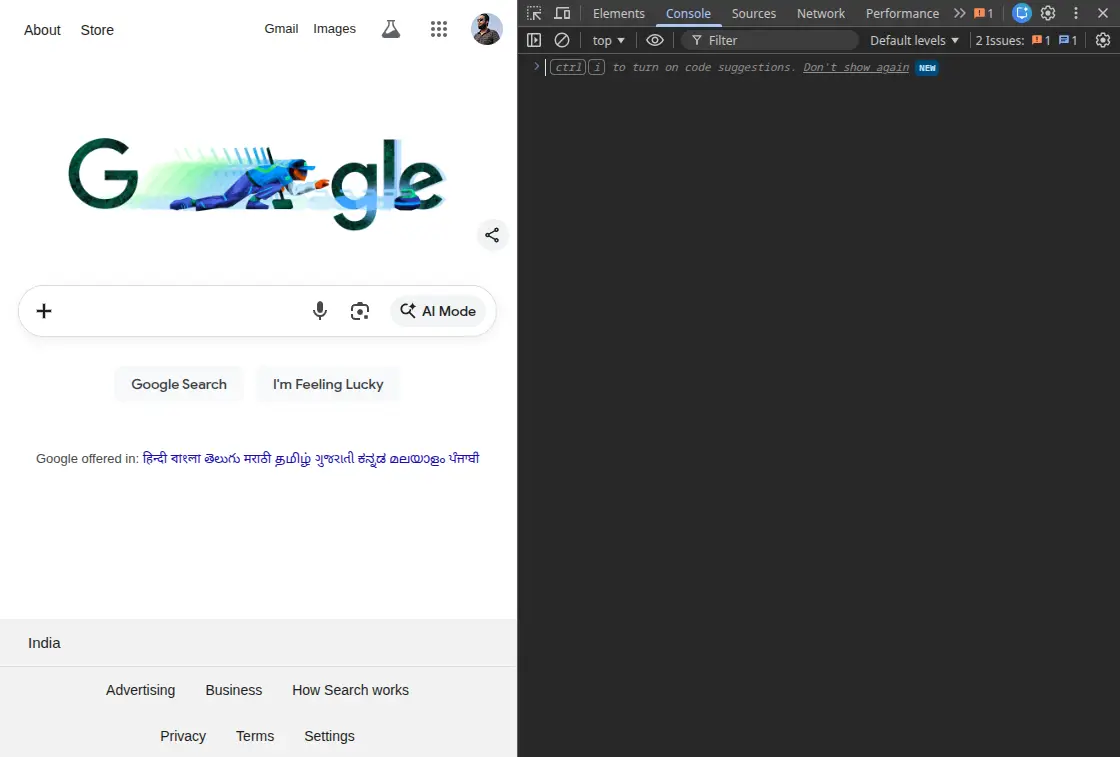
Chrome Developer Tools Setup
Access Chrome DevTools via F12 or Ctrl+Shift+I (Windows) / Cmd+Opt+I (Mac). This suite gives you direct access to the browser's rendering engine (Blink) and JavaScript engine (V8), allowing real-time inspection of network activity, the DOM tree, and storage states.
Spoofing the User-Agent
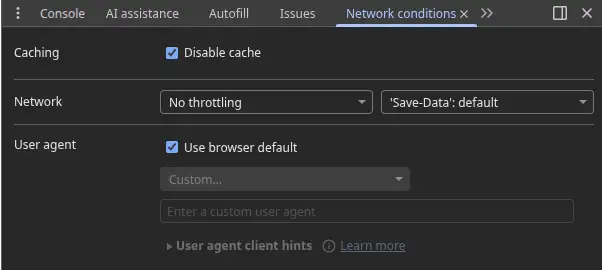
Websites often serve different content based on the requesting User-Agent. To audit as a search engine, spoof the UA string.
How to do it: Navigate to the Network conditions tab in the console drawer (press Esc). Uncheck "Use browser default" and select "Googlebot Smartphone" or enter a custom UA string for Googlebot/2.1.
Why this matters: This reveals "cloaking"—where a server sends optimized content to bots but spam or errors to users. It also verifies mobile-first serving configurations and bypasses certain paywalls or "coming soon" gates configured to allow crawler access.
Disabling Cache and Preserving Logs
Caching mechanisms can hide the true performance and status of a page.
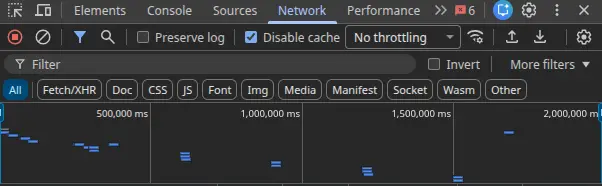
Disable Cache: In the Network tab, check "Disable cache" to force fresh requests from the server on every load. This simulates a first-time visit by a crawler.
Preserve Log: Check "Preserve log" to prevent the network history from clearing on navigation. This is critical for auditing redirect chains—you can inspect the HTTP headers of intermediate redirects (like 301 to 302 to 200) that would otherwise vanish instantly.
Emulating Sensors
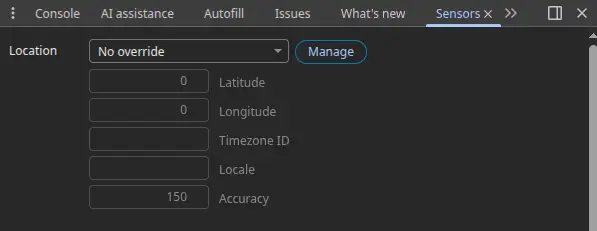
Mobile SEO requires more than resizing the window. The Sensors tab in DevTools lets you override geolocation and device orientation.
Geolocation: Many sites serve content based on IP location (using hreflang logic). By overriding coordinates to a specific target market (like Tokyo or London), you can verify if the correct localized version appears without using a VPN.
Technical SEO Audit: Server-Side Analysis
Technical SEO governs how search engines crawl, index, and interpret your site architecture. Without external crawlers, you rely on the Network tab and Source Code to diagnose indexability.
HTTP Status Codes
A page might display a "404 Not Found" custom error message while returning a 200 OK status code. This "Soft 404" tells Google to index the error page.
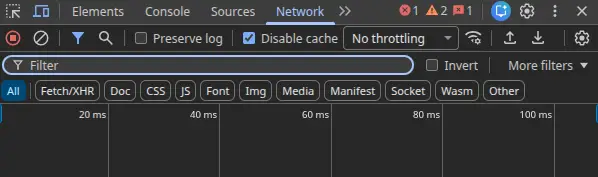
Inspect the primary document request in the Network tab (usually the first item) to determine the URL's true state:
- 200 OK: The resource was found and transferred.
- 301 Moved Permanently: The standard for SEO-friendly redirects. It transfers link equity (PageRank) to the new URL.
- 302 Found (Temporary): This tells search engines to keep the original URL in the index. Using 302s for permanent migrations prevents the new site from ranking.
- 404 Not Found / 410 Gone: The resource is missing. 410 is more definitive, signaling immediate de-indexing, while 404 may cause the bot to retry periodically.
- 500/503 Server Errors: These indicate infrastructure failure. A 503 Service Unavailable is useful during maintenance as it tells Google to come back later without de-indexing the page.
HTTP Response Headers
Critical SEO instructions often appear in HTTP headers, invisible in the HTML source code. Manual inspection via the Network tab's "Headers" pane provides definitive proof of server configuration.
The X-Robots-Tag
The X-Robots-Tag allows developers to control indexing for non-HTML files (like PDFs or images) or apply directives globally via server configuration (Apache .htaccess or Nginx nginx.conf).
Check: Inspect the response headers for X-Robots-Tag: noindex.
Implication: If a page contains in the HTML but the header sends X-Robots-Tag: noindex, the header takes precedence. This causes "mystery de-indexing" where on-page checks show no issues.
Vary and Cache-Control
Vary: User-Agent: This header is essential for dynamic serving setups. It informs caching servers and Googlebot that the URL content changes based on the User-Agent requesting it (Mobile vs. Desktop). Missing this header can lead to the desktop version being cached and served to mobile users, damaging mobile rankings.
Cache-Control: Aggressive caching directives can prevent Google from seeing recent updates.
Redirect Chain Forensics
Redirect chains (A → B → C → D) dilute link equity and waste crawl budget. Each step introduces latency and increases the risk of the bot abandoning the request.
Manual Tracing: With "Preserve log" enabled, enter the non-preferred URL (like http://example.com) and observe the waterfall.
Optimal Path: http://example.com → 301 → https://www.example.com
Chain Detection: If the trace shows http → https (non-www) → https (www), a chain exists. Rewrite server rules so any variation redirects directly to the final destination in a single hop.
Canonicalization: Source vs. DOM
Canonical tags signal the "master" version of a URL to prevent duplicate content issues. A critical nuance in manual auditing is identifying where the canonical tag lives.
Static vs. Dynamic Injection
View Page Source: Using Ctrl+U, check the raw HTML delivered by the server. A canonical tag here is ideal because the crawler sees it immediately.
Inspect Element (DOM): Check the rendered DOM. If the canonical tag is present in the DOM but missing from the Source, it's being injected via JavaScript.
Risk Assessment: While Google can process JS-injected canonicals, they require the rendering phase of indexing (the "second pass"), which can be delayed from hours to weeks. If the Source code defines canonical=A and JavaScript updates it to canonical=B, this conflict can cause Google to ignore the directive entirely.
Robots.txt and XML Sitemap Validation
These files constitute the "instruction manual" for crawlers.
Robots.txt Logic
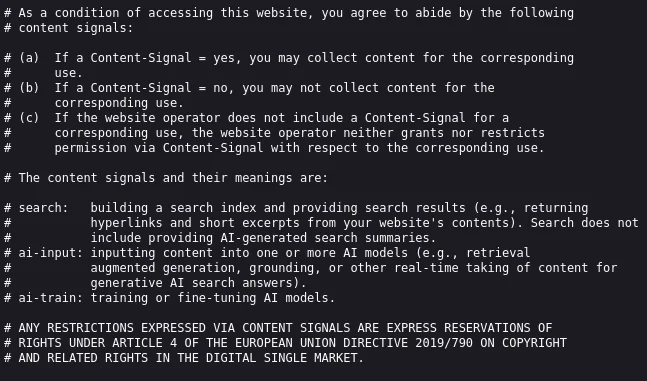
Manually navigate to /robots.txt and validate the logic:
- Syntax verification: User-agents are case-sensitive. Disallow: /admin is different from Disallow: /Admin.
- Logic Conflicts: A common error is Disallowing a parent directory (like Disallow: /products/) while attempting to index a child page. The bot will never reach the child page.
- Resource Blocking: Ensure CSS and JS files are not blocked. Google needs access to these to render the page and assess mobile-friendliness.
XML Sitemap Sampling
Without a crawler to validate all URLs in a sitemap, use random sampling:
Protocol: Open the sitemap file. Copy a random selection of 10-20 URLs.
Validation: Open these URLs in the browser. They must all return 200 OK. If the sitemap contains 404s or 301 redirects, it's "dirty," indicating a flawed sitemap generation process. Google may stop trusting a dirty sitemap.
Orphan Check: Identify a new or deep page on the site manually, then search for its URL within the sitemap text. Absence indicates an orphan page issue.
Hreflang and International Architecture
For multi-regional sites, hreflang tags prevent duplicate content and ensure the correct language version is served.
Manual Reciprocity Check: Hreflang works on a strict reciprocity system. If Page A (English) links to Page B (French), Page B must link back to Page A.
Audit Step: View the source of Page A and note the alternate link for French. Navigate to that French URL. View its source. Confirm it contains a self-referencing hreflang tag (French) and a return tag to Page A (English). A break in this chain invalidates the tags.
SSL/TLS Security and Mixed Content
Security is a ranking signal (HTTPS) and a trust factor.
Certificate Inspection: In the Security tab of DevTools, view the certificate details to ensure valid issuance and modern protocol support (TLS 1.2+).
Mixed Content: If the address bar doesn't show a secure padlock, open the Console. "Mixed Content" errors appear when a secure HTTPS page loads insecure HTTP resources (images, scripts). These insecure requests are often blocked by the browser, breaking page functionality, or they downgrade the security status of the entire session.
Rendering and JavaScript SEO
Modern frameworks (React, Angular, Vue) often rely on Client-Side Rendering (CSR), where the HTML source is a blank shell and content is populated via JavaScript.
The "Disable JavaScript" Test
To determine the site's reliance on CSR and potential indexation latency:
- Open the Command Menu (Ctrl+Shift+P) in DevTools.
- Type "Disable JavaScript" and hit Enter.
- Reload the page.
Analysis: If the screen is blank or navigation disappears, the site is fully CSR-dependent. This means Google must queue the page for rendering to see any content.
Link Audit: With JS disabled, hover over the menu links. If they're not clickable (relying on onclick events rather than <a href> tags), the crawler cannot follow them, creating a crawl trap.
Code Coverage Analysis
Bloated JavaScript execution blocks the main thread, delaying interactivity (Interaction to Next Paint - INP).
Coverage Tab: Open the Coverage tab in DevTools (via Command Menu). Click the "Reload" button to capture the load profile.
Unused Bytes: The tool visualizes code usage. Red bars indicate unused bytes. If a critical script is 90% unused, the site is loading a massive library (like the full Lodash or a heavy UI framework) just to use one small function. This is a prime target for optimization to improve Core Web Vitals.
On-Page SEO Audit: Content and Structure
On-page SEO concerns the semantic clarity and relevance of the document. Manual inspection allows for qualitative assessment of context.
Metadata Forensics
The Title Tag and Meta Description are the primary interface between the site and the searcher in the SERP.
Pixel Width vs. Character Count
Standard advice suggests specific character limits (like 60 chars for titles), but Google truncates based on pixel width (approximately 600px).
Visual Estimation: Characters like "W" and "M" are wide; "i" and "l" are narrow. A title like "MMMMMM" will truncate much faster than "iiiiii".
Source Check: Verify <title> and <meta name="description"> in the <head>. Ensure the primary keyword appears early in the title to maximize visibility and CTR.
Semantic Hierarchy (Header Tags)
Headers (H1-H6) communicate the document structure to the bot.
The H1 Rule: There must be exactly one
per page, representing the main topic. It should align closely with the Title Tag.
Hierarchy Flow: Scan the source code or use the Elements panel search (Ctrl+F → <h2>, <h3>). The structure should flow logically (H1 → H2 → H3) without skipping levels (like H1 → H4). Broken hierarchy confuses the semantic understanding of the content's depth.
Keyword Density and Cannibalization
Heatmap Analysis: Use Ctrl+F to search for the target keyword. Observe the distribution of the yellow highlight markers on the scrollbar. A natural distribution is spread evenly. Clumping at the top or bottom suggests stuffing or footer spam.
Cannibalization Detection (Operator): Use the search operator site:domain.com "target keyword". If Google returns dozens of pages that all appear equally relevant, it indicates keyword cannibalization—multiple pages competing for the same term. This dilutes authority and confuses the ranking algorithm.
Image Optimization and Alt Attributes
Images are often the heaviest resources on a page.
Network Inspection: Filter the Network tab by "Img". Sort by "Size". Any image exceeding 100-150KB should be scrutinized for compression opportunities (like converting PNG to WebP).
Alt Text: Inspect the DOM elements. Alt text is mandatory for accessibility and image search. It should describe the image content, not just stuff keywords.
Layout Shift: Ensure <img> tags have explicit width and height attributes. Without these, the browser doesn't know how much space to reserve, leading to content jumping (Cumulative Layout Shift) as the image loads.
Structured Data (Schema Markup)
Schema markup helps Google understand entities (Products, Recipes, Events).
JSON-LD Verification: View Page Source and search for application/ld+json.
Syntax Check: Manually verify the JSON structure (matching curly braces {}). Check that the @type matches the page content (like Product schema on a product page, not Article schema).
Console Debugging: In complex cases, copy the JSON object into the Console and hit Enter. If the JS engine parses it without error, the syntax is valid.
Accessibility Tree Inspection
Accessibility overlaps significantly with SEO. Google uses accessibility signals to understand page structure.
Accessibility Tree: In the Elements panel, click the "Accessibility" tab (or the "Switch to Accessibility Tree view" icon).
Forensic Value: This view shows exactly what a screen reader (and Googlebot) "sees." If a button is labeled in the visual DOM but appears as "Ignored" or "GenericContainer" in the accessibility tree, it's invisible to assistive technology and semantically void for SEO.
Performance and Core Web Vitals
While PageSpeed Insights is the standard, DevTools explains why the score is what it is.
Largest Contentful Paint (LCP)
LCP measures loading performance (user perception of speed).
Waterfall Analysis: Identify the LCP element (usually the hero image or H1). Trace its request in the Network waterfall.
Bottleneck ID: Is the delay in the green bar (TTFB - Server Speed), the blue bar (Content Download - File Size), or the grey bar (Stalled - Queueing)?
Optimization: If the LCP image is low in the waterfall, check if it's being lazy-loaded (anti-pattern for LCP) or blocked by render-blocking JavaScript.
Cumulative Layout Shift (CLS)
CLS measures visual stability.
Rendering Tab: Open the Rendering tab and check "Layout Shift Regions".
Visual Test: Reload the page and scroll. Areas that shift position will flash blue/purple. This highlights exact elements (ads, images, fonts) causing instability, often due to missing dimensions or late-loading CSS.
Off-Page SEO Audit: Authority and Reputation
Off-page signals (backlinks, brand authority) are difficult to assess without link databases, but Search Operators provide a powerful proxy.
Backlink and Brand Mention Analysis
Exclusion Queries: Search "Brand Name" -site:brand.com. This reveals all external mentions of the brand.
Link Reclamation: Manually check these results. If a high-authority news site mentions the brand but doesn't link, this is a prime "unlinked mention" opportunity.
Competitor Intersection: Query related:competitor.com to see who Google associates with the competitor. This reveals the "neighborhood" of authority you need to penetrate.
Indexation Intelligence
Site Operator: Query site:domain.com.
Bloat Detection: Compare the number of results to the actual number of pages. If the site has 50 products but Google shows 5,000 results, the site suffers from "Index Bloat" (likely due to parameter URLs or tag pages being indexed).
Deflation: If Google shows fewer results than expected, crawlability is blocked.
Local SEO and NAP Consistency
For local businesses, data consistency is the primary ranking factor.
NAP Check: Manually verify the Name, Address, and Phone Number (NAP) on the website footer, the Google Business Profile, and major directories (Yelp, YellowPages). Even minor discrepancies (like "St." vs "Street") can dilute local authority.
Knowledge Graph: Search for the brand. Inspect the Knowledge Panel. Use the source code to find the Knowledge Graph ID (/g/ or /m/ identifier) to track entity recognition over time.
Conclusion
Manual SEO auditing requires precision. It moves beyond the binary "pass/fail" metrics of automated tools to the nuanced "cause/effect" analysis of the browser environment. By mastering Developer Tools, you gain the ability to see the web as the search engine sees it—a stream of protocols, headers, DOM nodes, and rendering events. The checklist above is a forensic framework. Each check—from the HTTP header inspection to the pixel-width estimation of a title tag—is designed to uncover the structural truths of the website. In an industry increasingly dominated by automation, the ability to manually verify, debug, and optimize the fundamental building blocks of the web remains the most reliable path to sustained organic performance.
Related Articles
Discover more insights about web development and digital marketing